Your Contact Consent allows us to legally contact you with information regarding our products and services. This consent is a regulatory requirement.
You can at any time ask us to withdraw your consent, in which case we will update our records accordingly and no longer send you information on products and services.
Changes in your consent are formally tracked in our software and if necessary can be reviewed by selected software users.
To sign Contact Consent (Patient)
When you receive the Clinipad device, check that it is your name at top right and then select the Contact Consent button:
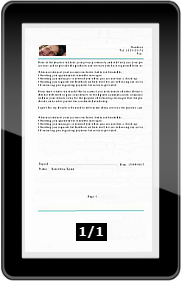
The Contact Consent text displays on Clinipad. For example:
Carefully review the information.
Note that the number of pages shows at the bottom of the screen (e.g. 1/1) , and you will need to swipe to further pages if the text extends to more than one page.
If you find it acceptable, tap the Sign button:
You will see a screen showing the first signature box on the form.
Cancel if you want to go back, but the forwards options are not available until you have signed.
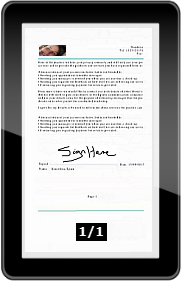
Sign the Contact Consent using a finger or a stylus:
Select the Send button.
You will now see your signed PDF form displayed on the screen:
Review the form, and if satisfied with it, select the Done button:
The Contact Consent button on the Clinipad front screen will then display a check (tick):
Hand the Clinipad device back to the practitioner.