Signing your Terms and Conditions (Patient)

Instructions to patients:

Please use the Clinipad device to digitally sign our Terms and Conditions statement.

To sign the Terms and Conditions on the Clinipad

  1. A Receptionist or a Clinician will hand you the Clinipad.
  2. If this is a Family Appointment, please select your name:

    (note that each family member needs to sign separately)
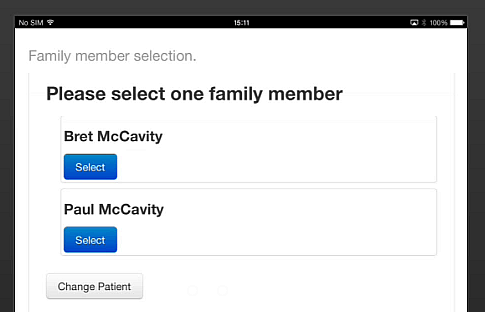
    SelectAFamilyMember

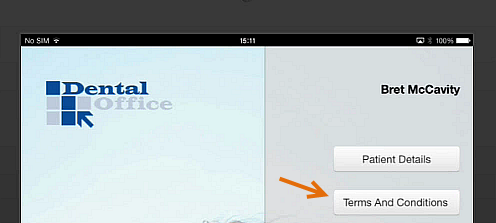
  3. Tap the Terms and Conditions button:

    ClickTermsAndConditions

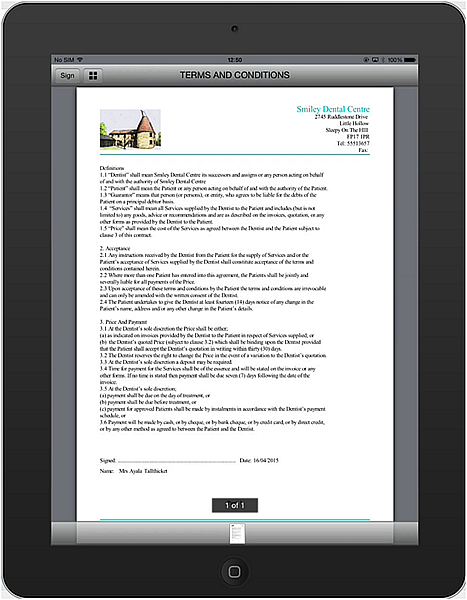
  4. Read the Terms and Conditions on the screen (the signature area is not interactive in this screen):

    TCs-On-Clinipad-1

  5. Select the Sign button at top left:

    TCs-SignButton

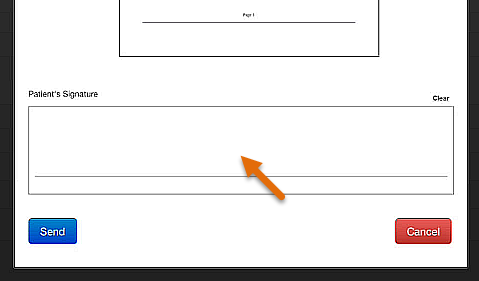
  6. Sign by means of a pen, stylus or finger in the Patient's Signature area:

    TCs-sign

    (Select the Clear hyperlink at top right of the signature box if you need multiple attempts)
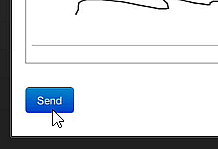
  7. With your signature completed, select the Send button:

    TCs-Send

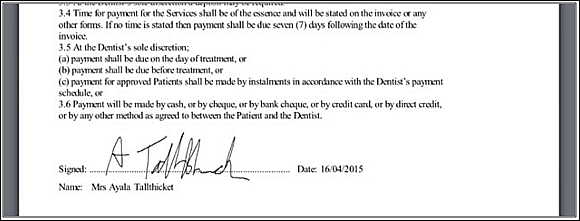
  8. Do a final check with your signature displayed in context:

    TCs-SignedFinal

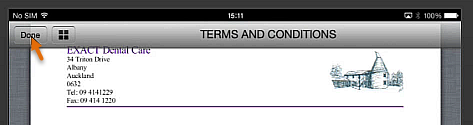
  9. Select the Done button at top left:

    TCs-Done

    On the main Clinipad screen you will see that the Terms and Conditions is now checked (ticked).
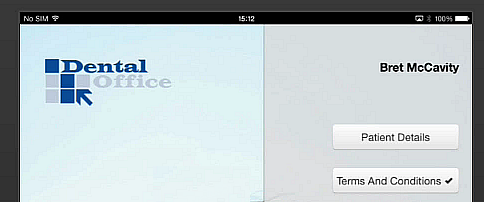
    TCs-Ticked

  10. If you are part of a family appointment, select the Change Patient button to offer the device to another family member:

    SelectChangePatient

See also...

Using Clinipad Terms and Conditions

Next >>

Configuring Clinipad Terms and Conditions